Bring in the source
Start with the image that already contains the useful material. A clear source makes it easier to judge whether later changes improve the composition or simply add more decoration.
Browser-based editing
An image editor online gives you a direct path from source image to finished visual without making the workflow feel heavier than the task. Open an image, make focused changes, and review the result before handing it off.
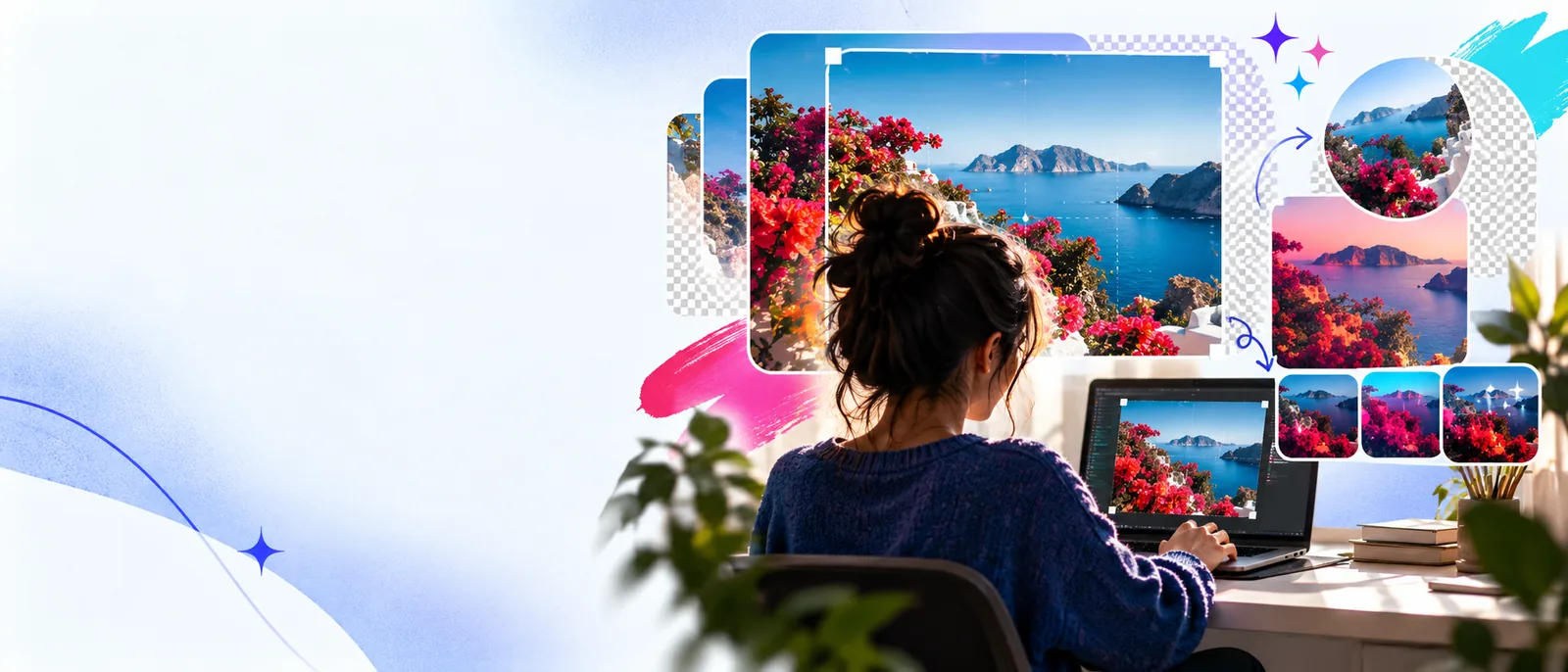
The most useful online editing experience keeps the path understandable: bring in the source, shape the change, then inspect the output. These three stages help keep a small edit from becoming a confusing project.
Start with the image that already contains the useful material. A clear source makes it easier to judge whether later changes improve the composition or simply add more decoration.
State the outcome in practical terms, such as improving contrast, removing visual clutter, adding a title area, or preparing a crop for a particular placement.
Check edges, text legibility, subject placement, and overall balance before using the result. A final visual review catches issues that a quick first impression can miss.
See how a browser-first surface can fit quick edits into an ordinary desktop workflow.
Follow a practical sequence for moving from an initial image to a more polished result.
Compare directed editing with AI-assisted changes when the desired result is easier to describe than build manually.
Online editing is useful because it removes setup friction, not because it makes every image task effortless. These are the trade-offs worth checking before you begin.
A browser workflow is not automatically a replacement for a full production environment with extensive layers, plugins, and specialized color controls.
WorkaroundBreak the job into focused passes and keep the original source available for deeper finishing elsewhere.
A small, compressed, or poorly lit image can remain soft or noisy after editing. Adjustments can improve presentation, but they cannot recreate every missing detail.
WorkaroundUse the largest clean source available and inspect the result at its intended display size.
Text placement, colors, and spacing may need a human check when the image must match strict brand guidelines or a reusable design system.
WorkaroundCompare the output with your approved type, color, and spacing references before publishing.
An online tool relies on a compatible browser and a stable path to the service, which may not suit restricted devices or offline production settings.
WorkaroundPlan a local fallback for confidential, disconnected, or tightly controlled work.
The choice is less about whether one surface is universally better and more about what the current image task requires. This side-by-side view helps set expectations before you start.
Online image editor
Open the browser workflow and begin with the source image.
Desktop editing app
Install the application, manage updates, and configure the workspace.
Online image editor
Quick adjustments, visual variations, and straightforward content preparation.
Desktop editing app
Long projects with deep compositing, advanced retouching, or specialized tools.
Online image editor
Useful when the job needs to move between compatible devices and browser sessions.
Desktop editing app
Tied more closely to the machine and local file setup where it is installed.
Online image editor
Focused controls can keep everyday edits easier to navigate.
Desktop editing app
More extensive controls are available, but they can increase learning and setup time.
Online image editor
You review the result before publishing.
Desktop editing app
You review the result before publishing.
Online image editor
Less local maintenance for small, self-contained tasks.
Desktop editing app
More project structure and asset management for complex work.
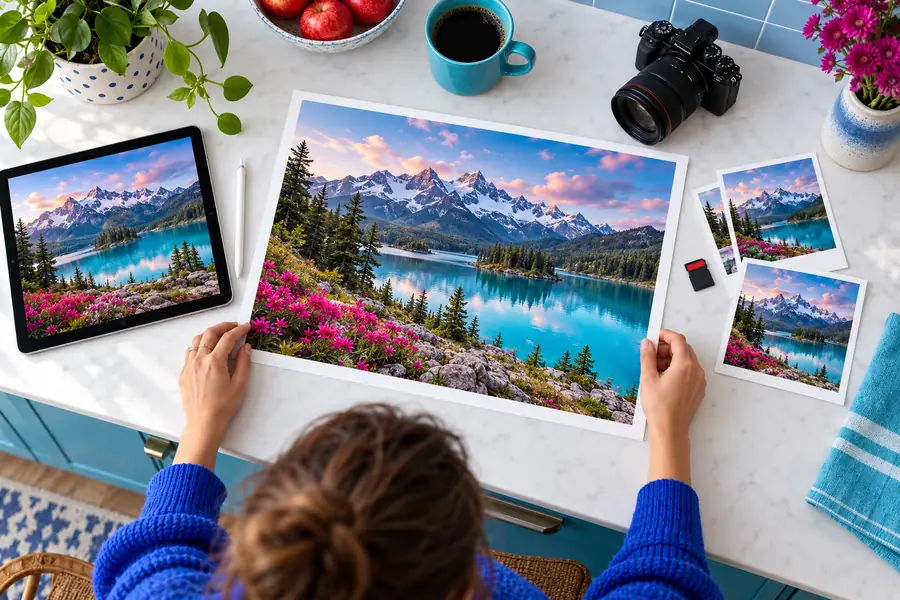
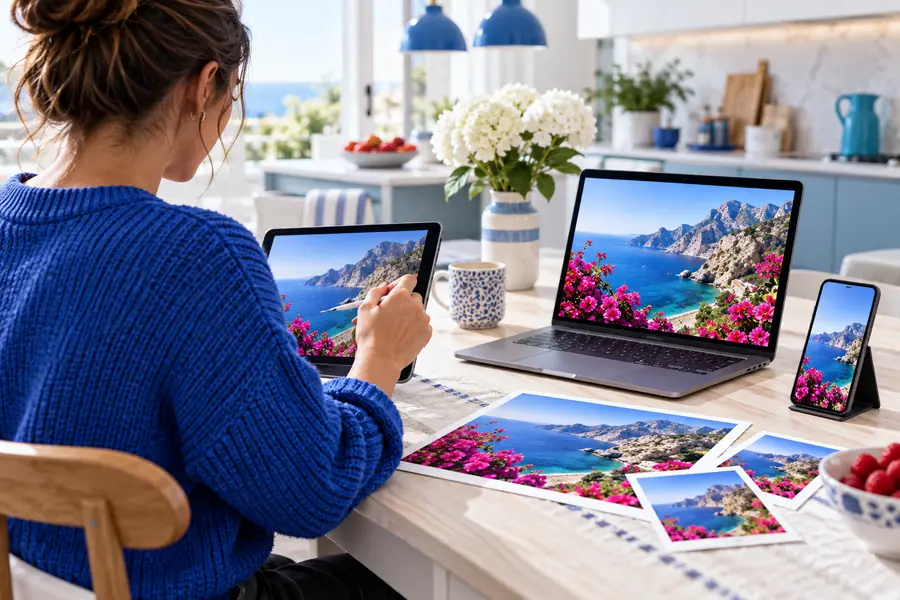
Compare the source and finished presentation at the size where the image will actually be used.
Start with the outcome you want, keep the request specific, and use the first result as something to inspect rather than an automatic final answer. That simple habit makes online editing more repeatable.
An image editor online is a browser-accessed workspace for making changes to a visual without relying on a locally installed editing application. Depending on the workflow, it can help with adjustments, composition, text, and presentation.
Begin with the image you want to change, describe or select the intended edit, and review the resulting frame carefully. Use a specific request that names the subject, visual change, and any important placement or readability requirement.
That depends on the service, browser, and the complexity of the task. Simple reviews or focused edits may work well on a smaller screen, while detailed composition and text placement are generally easier to judge on a larger display.
It can be suitable for quick production tasks, drafts, variations, and content preparation when the result is reviewed carefully. Work with strict brand, color, privacy, or layered-file requirements may still need a more controlled local workflow.
An online workflow is designed to be accessed through a browser rather than a traditional desktop installation. You should still check the specific service requirements and confirm that the browser and working environment meet your project needs.