The product marketer
A product photo needs a cleaner background for a campaign draft.
Use a focused instruction to explore the direction, then refine the chosen image in a broader workflow.
image editor onlineImage editor ai workflows help you describe a targeted change before you open a crowded set of controls. Use the prompt as a starting point, then review the result and decide whether the change needs a general image editor.
Compare a browser-first workflow when you want familiar editing tools in one place.
Review practical ways to plan an editing workflow before choosing a paid product.
See how browser-based access fits quick edits across different devices.
Focus on adding, replacing, and positioning words when text is the main part of the image.
AI is most useful when the desired change can be explained clearly. These examples show where a focused instruction can complement, rather than replace, a full image editor.
A product photo needs a cleaner background for a campaign draft.
Use a focused instruction to explore the direction, then refine the chosen image in a broader workflow.
image editor onlineA portrait needs a small composition change before it is shared.
Describe the intended adjustment in plain language and compare the result with the original.
image editor browserA graphic needs revised wording while its overall layout stays recognizable.
Choose a text-focused workflow when the important task is editing words rather than restyling the whole image.
image text editor onlineSeveral possible visual directions need to be considered before a final edit is approved.
Treat AI output as an exploratory draft and use a general image editor for precise cleanup and decisions.
what is an image editorA reliable AI workflow is less about writing a perfect sentence and more about giving the editor a clear subject, change, and constraint.
Name the main object, person, or area that should remain recognizable. Specific context gives the image editor a better starting point.
Ask for a single visible adjustment first, such as changing the background, softening a detail, or shifting the mood.
Compare the result with the source image. Keep what works, identify what does not, and move to a general image editor for exact corrections.
A before-and-after comparison makes it easier to judge whether an AI suggestion preserved the parts of the image that matter.
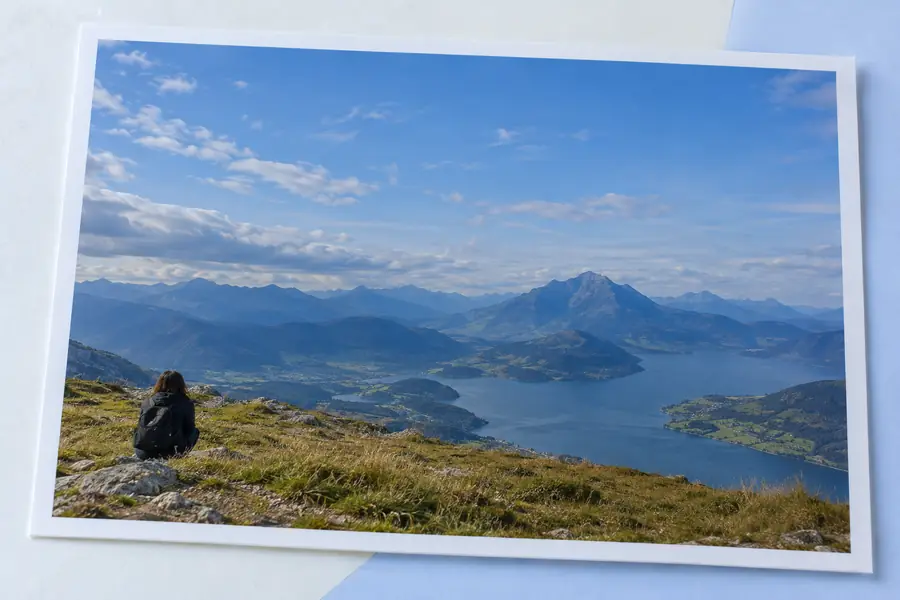
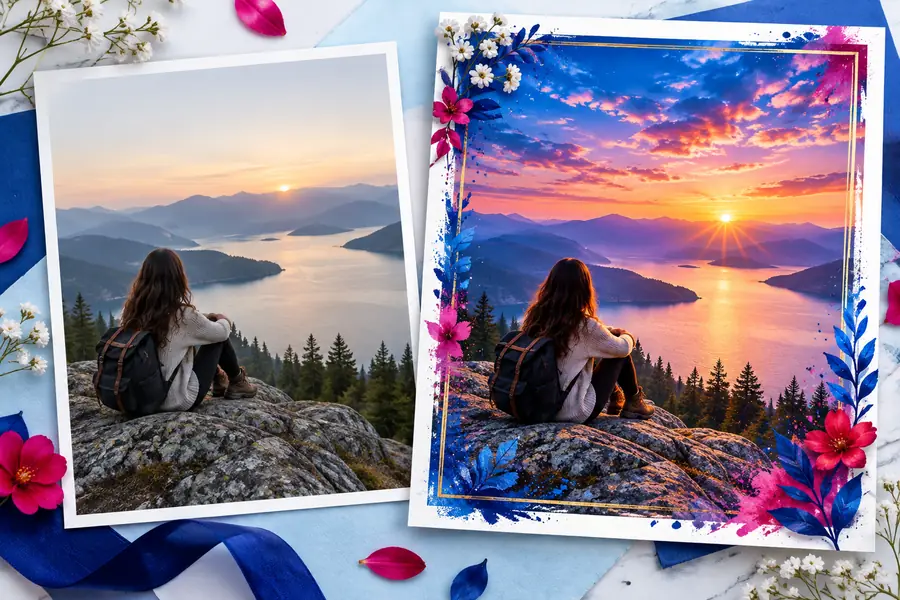
Compare structure, subject detail, color, and unwanted changes before treating an AI result as final.
AI can shorten the path to an idea, but it does not remove the need for judgment. These boundaries help keep the workflow realistic.
A broad request can change more of the image than intended, especially when the subject and background are visually similar.
WorkaroundDescribe what must stay unchanged and begin with one narrow adjustment.
Pixel-level alignment, precise masking, and repeatable layout work still call for conventional editing controls.
WorkaroundUse AI for exploration, then finish detailed work in a general image editor.
Words in an image can be altered, misspelled, or shifted when the surrounding design changes.
WorkaroundUse a dedicated image text editor online workflow when readable copy is the priority.
A visually plausible output can still contain unwanted artifacts or changes to identity, product details, or composition.
WorkaroundCompare the output with the source and approve only the changes you can verify.
The two approaches support different moments in a project. Choose the focused route for exploration and the general route when you need deliberate, visible control.
AI-focused entry point
A clearly described visual change
General image editor
A file that needs hands-on editing
AI-focused entry point
Describe the intended result
General image editor
Select tools, settings, and regions
AI-focused entry point
Fast exploration of a direction
General image editor
Precise control over the final adjustment
AI-focused entry point
Background ideas, mood changes, and visual variations
General image editor
Cropping, retouching, layout, and exact cleanup
AI-focused entry point
Compare the generated suggestion with the source
General image editor
Inspect each adjustment as you make it
AI-focused entry point
May need careful checking after a change
General image editor
Better suited to deliberate text placement and correction
AI-focused entry point
Move to detailed controls when the direction is clear
General image editor
Use an AI prompt when you need fresh alternatives
A focused AI workflow is useful when you have a visual direction but do not yet know the exact sequence of tools. Describe the change, inspect the result, and keep the general image editor in reserve for the details that require your judgment.
An AI image editor is a tool that uses an instruction or other guidance to suggest changes to an image. It can help explore a visual direction, but the result should still be reviewed before it is treated as final.
A regular image editor usually gives you direct controls for selecting, adjusting, and arranging parts of an image. An AI workflow starts from a description of the desired change, which can be useful for exploration but may require more checking.
Not in every situation. AI can help with variations and broad visual changes, while a general image editor remains useful for exact masking, alignment, retouching, and controlled text or layout work.
Name the subject, describe one specific change, and state what should remain unchanged. Short, concrete instructions are easier to review than a long request containing several unrelated edits.