Choose the image and task
Start with a working copy and define one outcome, such as a cleaner crop, readable text, a resized asset, or a quick visual correction.
Workflow guide
An image editor for photoshop can handle focused visual tasks before or after your main project work. Use this guide to decide what belongs in Photoshop and what can move through a simpler editing step.

Limits and edges
A focused image editor is useful when the task is narrow, repeatable, or time-sensitive. It is not a substitute for every Photoshop feature or production safeguard.
Layer effects, smart objects, adjustment stacks, plug-ins, and specialized masks may not transfer cleanly between tools.
WorkaroundKeep the layered master in Photoshop and use the companion editor for flattened copies or isolated tasks.
Web-focused editing can differ from a print or broadcast workflow that depends on calibrated profiles, proofing, and controlled exports.
WorkaroundReturn final color decisions to the managed application before sending work to production.
An editor can change an image, but it may not replace your naming rules, version history, approvals, or shared storage system.
WorkaroundUse a consistent filename and save the edited result back into your existing project structure.
Large composites, precise selections, advanced retouching, and extensive layer-based revisions are better handled in Photoshop.
WorkaroundUse this route for preparation, quick corrections, and review versions, then finish complex work in Photoshop.
Three handoffs
The simplest approach is to decide the job first, make one focused pass, and preserve the source before handing the result onward.
Start with a working copy and define one outcome, such as a cleaner crop, readable text, a resized asset, or a quick visual correction.
Use the image editor for the adjustment that does not require a deep layer stack. Keep the change narrow so the result is easy to inspect and compare.
Check dimensions, readability, edges, and export quality. Keep the original Photoshop file intact, then place the edited result beside the source or return it to the project.
Keep exploring
These nearby guides cover other ways to choose and use an image editor, depending on your device, browser, and editing goal.
This guide explains when a browser-based workspace is a practical choice for everyday image changes.
Explore how assisted tools can support ideation and targeted changes without replacing your review process.
Use this route when adding, correcting, or arranging words inside an image is the main task.
Compare browser-first editing with a desktop-centered setup before choosing where to work.
Side-by-side view
Neither option wins every task. The better choice depends on how much control, repeatability, and project structure the image needs.
Photoshop
Layered compositions, detailed retouching, and production files
Focused image editor
Quick corrections, crops, resizing, and simple visual updates
Photoshop
Deep layer, mask, adjustment, and smart-object workflows
Focused image editor
Usually simpler and more limited
Photoshop
Broader toolset requires more time to learn
Focused image editor
Narrow tasks can be easier to approach
Photoshop
Strong fit for preserving an editable master
Focused image editor
Best used with a source copy and clear handoff
Photoshop
Precise control for type, layout, and layered revisions
Focused image editor
Useful for straightforward text edits and overlays
Photoshop
Can be more setup than a small task requires
Focused image editor
Efficient for a single focused adjustment
Photoshop
Better suited to managed, multi-step finishing
Focused image editor
Best for preparation, review versions, or lightweight output
Practical use cases
A companion editor is most useful when it removes a small bottleneck without disturbing the main creative file.
A designer needs a quick crop or alternate size for a presentation while the layered master remains open in Photoshop.
The working copy is ready for review without creating unnecessary changes in the master file.
image editor onlineA content editor needs readable text placed on a social image or announcement graphic before publishing.
The team can prepare a clear variant and send it through the normal approval process.
image text editor onlineA photographer wants a quick visual correction or web-sized copy while keeping the original capture and main retouching project untouched.
A usable preview or delivery version is separated from the archival source.
before and after picture maker online freeA business owner needs a clean product image, banner, or profile asset without learning every advanced Photoshop panel.
A focused image editor can shorten the path from source image to practical marketing asset.
image editor tutorial for beginnersVisual check
The value of a focused edit is easiest to judge when the source and result stay visible together. Compare the change, then decide whether the file needs a deeper Photoshop pass.
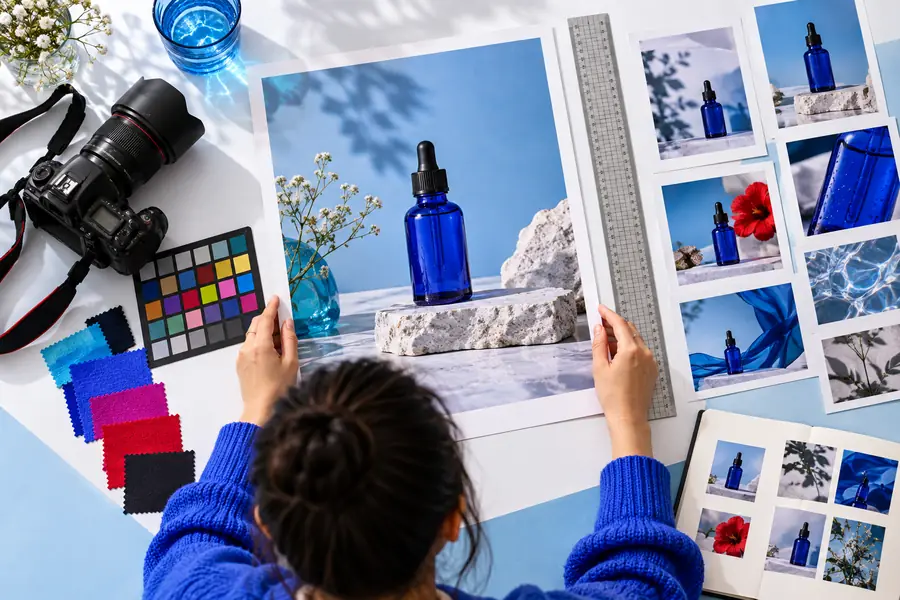

Use the comparison to check whether the change is clear, controlled, and ready for its next destination.
Start with the task rather than the tool. Keep Photoshop for layered, detailed, and production-sensitive work, and use a focused image editor when a smaller change can move independently. That division keeps the source safer and makes review easier.
Common questions
Usually, no. A focused editor can cover simple crops, resizing, text changes, and quick corrections, but Photoshop remains better for complex layers, masks, composites, and production workflows.
Keep the layered Photoshop file as the source of truth and work from a copy when the task is narrow. After checking the result, save it as a clearly named version and return it to the project or delivery folder.
Compatibility depends on the file structure and the features used. Flattened exports are generally easier to handle, while layers, effects, masks, and smart objects may not remain fully editable outside Photoshop.
Not necessarily. Photoshop is the stronger choice when you need detailed control or an editable production file, while a simpler image editor can be more practical for an isolated, low-risk adjustment.
It can be suitable for quick tasks, review versions, and accessible handoffs. Check the export result carefully, and keep the original Photoshop project available whenever the edit may need future layer-level changes.