Prepare both images
Choose the original and updated versions, then check that the subject, orientation, and important details are visible in both.
Compare visual changes
A before and after picture maker online free workflow helps you show exactly what changed. Arrange two image states, refine the presentation, and create a comparison that is easy to understand.
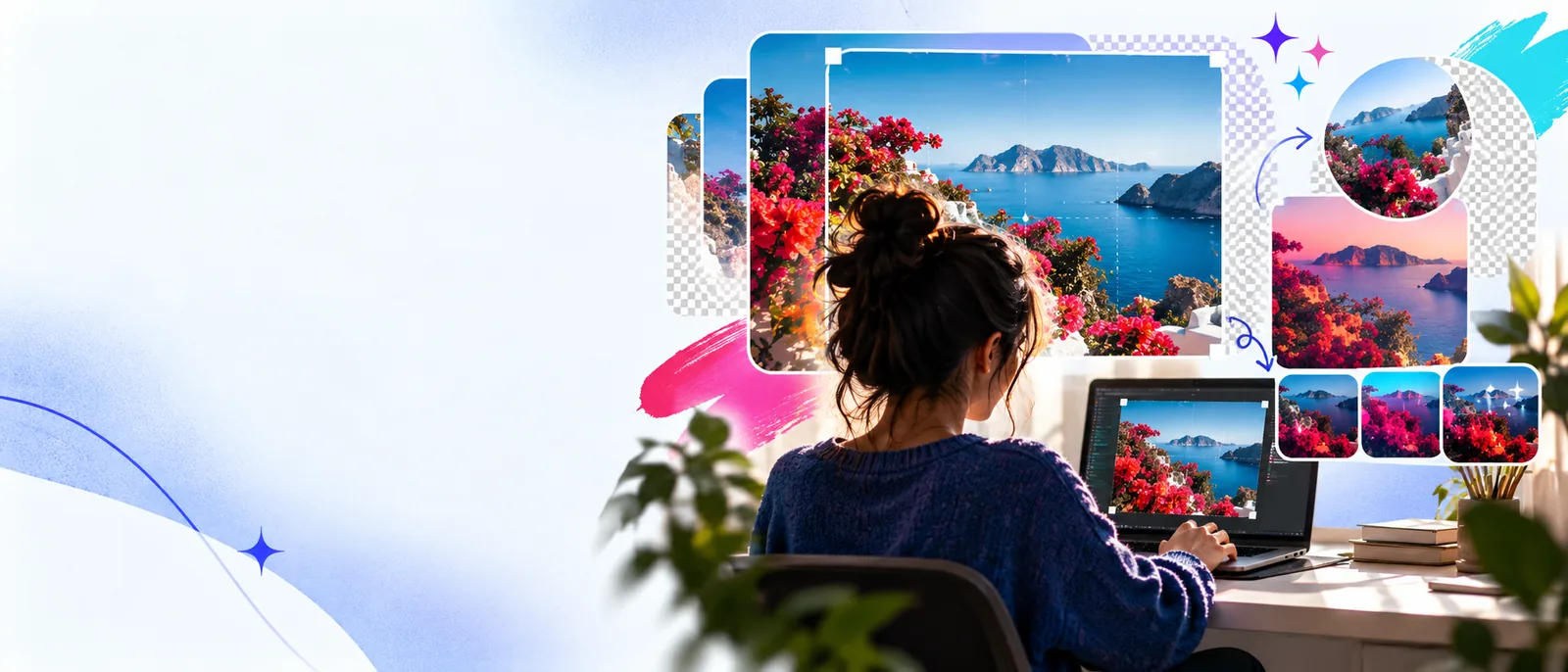
Work with your images in a browser-based editing workflow.
Add readable captions, labels, and supporting text to a visual.
Use AI-assisted editing ideas when a comparison needs more than a basic crop.
Keep the comparison process accessible from a supported browser.
A strong comparison makes the starting point and the result share the same visual language, so viewers can focus on the change instead of decoding the layout.
Choose the original and updated versions, then check that the subject, orientation, and important details are visible in both.
Use a consistent crop, scale, and position so the difference is caused by the edit rather than by a distracting layout shift.
Apply short labels or a simple divider, then review the final composition at the size where people will actually see it.
Use this side-by-side checklist to decide whether the comparison is ready for review, documentation, or a shareable result.
Before image
Original reference state
After image
Edited or completed state
Before image
Choose a stable framing
After image
Match the framing to the original
Before image
Record the starting placement
After image
Keep placement comparable
Before image
Use a clear source label
After image
Use a clear result label
Before image
Show the issue or starting condition
After image
Show the intended improvement
Before image
What needs to change?
After image
Is the change easy to verify?
Before image
Provides context
After image
Communicates the outcome
Different audiences need different kinds of proof. Keep the image editor workflow focused on the detail that matters to each viewer.
Show a room before and after repainting, rearranging, or updating a feature.
A matched comparison makes the improvement visible without a long explanation.
image editor examplesPresent an original concept beside a refined layout, color treatment, or composition.
Reviewers can identify the design decision and its effect at a glance.
image editing for PhotoshopTurn a raw photo and a finished version into a labelled social or portfolio visual.
The result tells a compact story while keeping the source visible for context.
online image text editingDocument a visual fix by pairing the reported state with the corrected screen or asset.
The image editor output gives reviewers a direct record of what changed.
browser image editingThese simple quantities describe the structure of the finished visual rather than a promised product limit.
A before-and-after layout is most useful when the two images feel connected but remain easy to inspect independently.

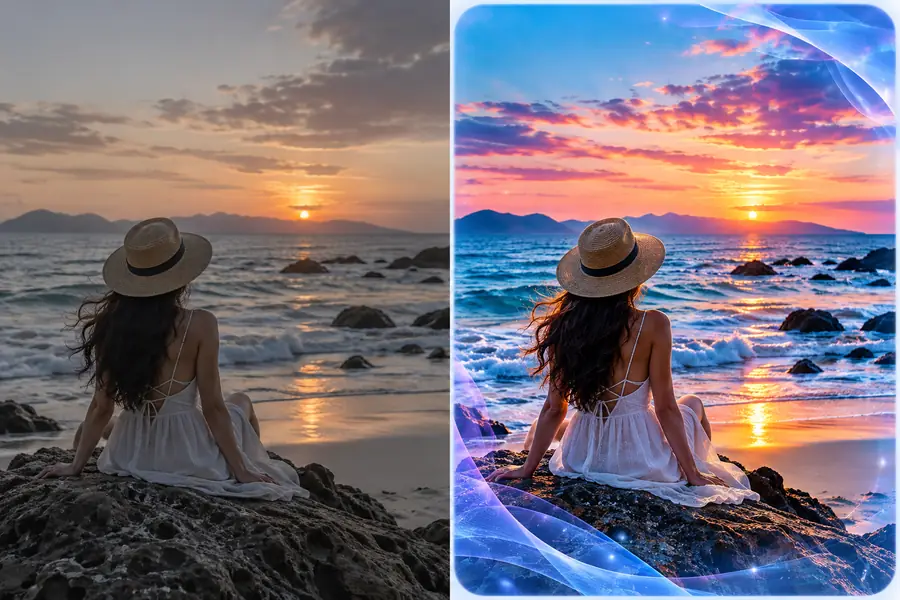
Keep the subject and framing aligned so the divider reveals the change rather than a different viewpoint.
Open the image editor and shape your comparison around the detail viewers need to verify. Start with the original and result, then refine the layout until the difference reads immediately.
It is a way to place an original image beside an edited or completed version so viewers can compare the change. The workflow usually includes matching the crop, adding labels, and separating the two states with a divider.
Start with images that show the same subject from a similar angle. Match their scale and framing, use concise Before and After labels, and check that the most important change remains visible at the final display size.
Yes, text can identify each state, explain the edit, or provide brief context. Keep typography consistent and avoid covering the detail that the comparison is meant to prove.
Usually, yes. A shared crop reduces distractions and helps viewers attribute the difference to the edit rather than to a changed viewpoint, scale, or composition.
A strong comparison has a clear divider, readable labels, balanced spacing, and enough resolution to inspect the relevant detail. It should also make the original and result visually distinct without making either one difficult to see.