Practical tutorial

How to use image editor online step by step

This guide to how to use image editor online walks you from the first upload to a polished final image, with simple checks that prevent common mistakes.

Describe the result you want
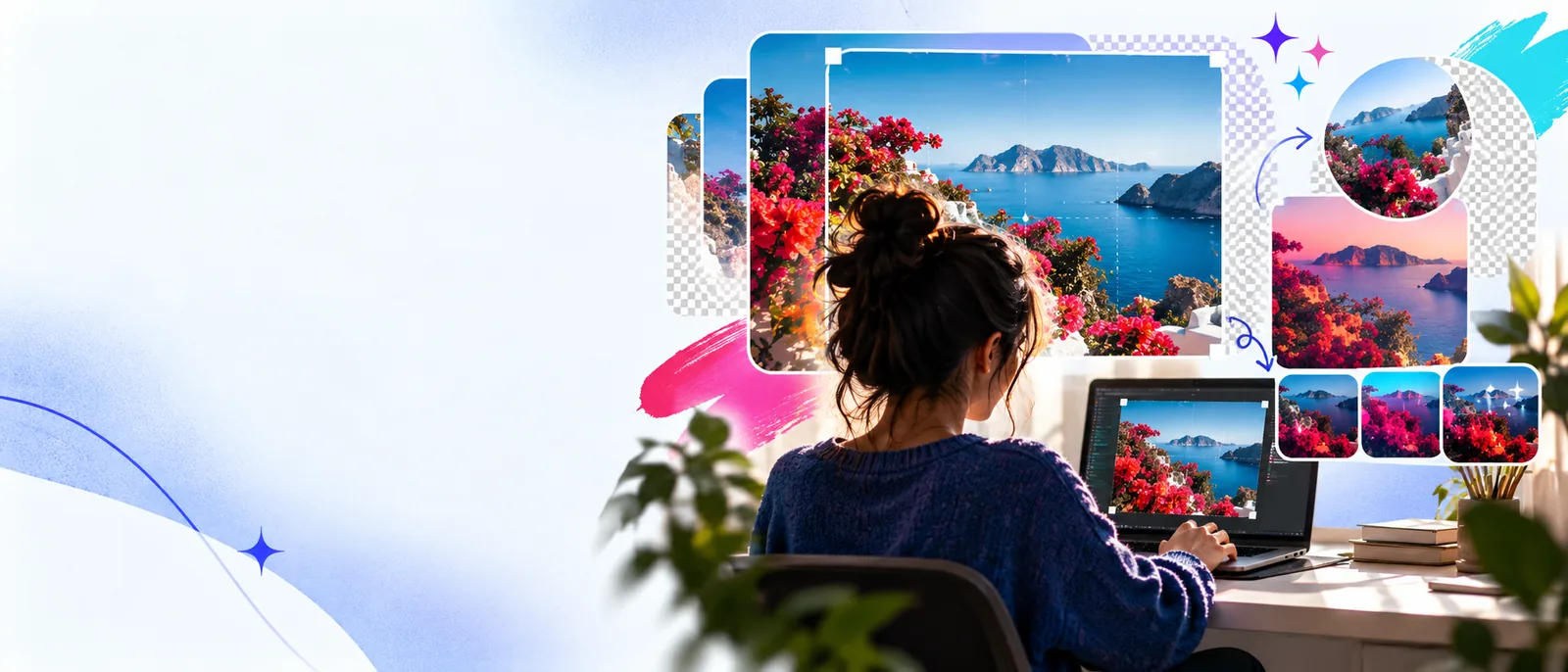
Creative image editing workspace on a monitor and laptop

numbered steps

Work in a consistent order: establish the canvas, make the important visual changes, then inspect the result before saving it.

Open the source image

Choose the clearest version of the image you have and check its orientation before making changes. If the file is already compressed, keep a separate copy so you can return to the original. Give the project a useful name if the editor asks for one.

Set the composition

Crop or resize first, because later adjustments are easier when the framing is settled. Match the proportions to the destination: a square post, a wide banner, a portrait story, or a document preview may each need a different composition.

Make focused adjustments

Change only what supports the intended result. Correct brightness or contrast, refine color, remove distractions, or add text with readable spacing. Small, deliberate changes usually preserve more detail than stacking many dramatic effects.

Review and export

Zoom out to judge the whole image, then zoom in to inspect edges, text, and unwanted marks. Check that the output still looks right on a light and dark background before exporting the version required by your destination.
common errors and fixes

Most disappointing results come from a skipped setup step or a final check that happens too quickly. Use this comparison while working through an online edit.

Common mistake Better fix
1

Starting with a tiny source

Common mistake

A small image can become soft when it is enlarged or heavily cropped.

Better fix

Choose the largest suitable source available and avoid enlarging more than the final use requires.

2

Cropping at the end

Common mistake

Important faces, products, or text may be cut off after the main edits are complete.

Better fix

Set the intended aspect ratio near the beginning, then make adjustments inside that frame.

3

Overcorrecting color

Common mistake

Strong saturation or contrast can hide detail and make skin, skies, or product colors look unnatural.

Better fix

Make a modest adjustment, pause, and compare it with the original before adding more.

4

Using low-contrast text

Common mistake

Words can disappear over a busy photograph, especially on smaller screens.

Better fix

Increase separation with placement, weight, size, or a restrained background treatment.

5

Ignoring edges

Common mistake

Halos, rough selections, and accidental marks often appear around hair, objects, or borders.

Better fix

Inspect the perimeter at a closer zoom and soften or clean any visible transition.

6

Exporting without checking

Common mistake

The saved image may have the wrong framing, unreadable text, or an unintended final change.

Better fix

Review the complete composition once more before sending or publishing the output.

advanced tips

Once the basic workflow feels familiar, these habits make repeat edits easier to control and easier to review.

Social content creator

Prepare one image for several placements without losing the subject or making the message hard to read.

Keep the focal point inside a safe central area, create the crop variations first, and add text after each frame is stable.

image editor examples free

Marketing generalist

Turn a plain product or event photo into a consistent campaign asset with a repeatable visual treatment.

Save a simple checklist for framing, color, text placement, and final inspection so each variation follows the same order.

best image editor examples

Photoshop user

Handle a quick correction when a full desktop workflow would add unnecessary setup time.

Define the exact change before opening the tool, preserve the original, and verify the result against the intended destination.

image editor for photoshop

Mobile publisher

Make a small adjustment while working from a phone or tablet and keep the composition readable on a compact screen.

Use fewer changes, inspect the image at actual viewing size, and avoid placing important text too close to an edge.

image editor android

Ready to make the edit?

Bring your source image and a clear description of the result you want. A focused brief makes the first pass easier to assess and gives you a practical starting point for refinement.

  • Start with the intended use
  • Describe the most important change
  • Review the result before sharing

tutorial FAQ

These answers cover the practical questions people commonly ask before beginning an online image-editing workflow.

Start with the original image and decide where the finished version will be used. Then set the likely crop or proportion before making detailed color, cleanup, or text changes.

Describe one clear outcome instead of listing unrelated changes. Use a suitable source image, make adjustments in a deliberate order, and inspect the complete result before exporting.

Yes, when the editing surface includes text controls or supports a text-focused workflow. Keep the message short, place it where it will not compete with the subject, and check contrast at the final viewing size.

Blurriness can come from a small source, repeated resizing, an overly tight crop, or an output setting that reduces detail. Begin with the largest suitable original and avoid enlarging the image more than necessary.

Keep the original available and review the two versions for framing, detail, color, and text placement. A quick side-by-side check helps reveal changes that may look acceptable when viewed alone.

Start creating
Start creating