Editing inspiration

Find best image editor examples for your next visual

The best image editor examples make a specific improvement easy to see: a cleaner product photo, a more legible graphic, or a portrait that still looks like its subject. Use these scenarios to decide what to change and what to preserve.

Image Editor landing visual

Where we slot in

Pick a scenario that resembles your own image, then judge the proposed result against its intended audience.

Small-shop owner

A product photo has a distracting tabletop and inconsistent framing across a catalog. Keep the item's shape, color, and visible details accurate while making the composition easier to scan.

A consistent set of product images with enough space for a storefront crop. For more visual starting points, see the related examples page.

image editor examples free
Community organizer

An event photo needs room for a date and venue without putting text across people's faces. Check readability at the small size used in a feed.

A social graphic with a clear information hierarchy, rather than decoration that competes with the message.

image text editor online

Portrait photographer

A good expression is lost in uneven lighting. Improve the image gently and compare skin texture, hair edges, and facial features with the original.

A brighter portrait that remains recognizable instead of looking heavily processed.

image editor ai

Local publisher

A story needs an image that works in both a wide header and a narrow mobile preview. Decide which subject must stay visible in each crop.

Two purposeful crops from one source, each checked at its actual display size.

image editor browser

Before/after

The strongest contrast shows a useful change without hiding a new problem.

Name the problem

Write down what fails in the original: clutter behind a product, low contrast around a face, or text that cannot be read on a phone. Keep the source image for comparison.

Make one purposeful change

Adjust the crop, background, lighting, or text placement to address that problem. Avoid changing several unrelated elements at once; otherwise, it becomes difficult to tell which edit helped.

Inspect the result in context

Compare source and output at the size where the image will appear. Check important edges, accurate details, legible text, and whether the subject still looks natural.

Deliverable spec

These are evaluation criteria for a finished image, not a promise that every editing tool supplies a particular feature or export.

Source image Useful edited version
1

Main subject

Source image

Present but competing with the surroundings

Useful edited version

Easy to identify at the intended display size

2

Composition

Source image

Important details near an awkward edge

Useful edited version

Crop leaves the subject and any required text safely visible

3

Lighting

Source image

Uneven or too dark for the intended use

Useful edited version

Balanced enough to reveal detail without flattening texture

4

Background

Source image

Distracting elements pull attention away

Useful edited version

Less distracting while believable edges remain intact

5

Text

Source image

Missing, cramped, or hard to read

Useful edited version

Placed with sufficient contrast and breathing room

6

Authenticity

Source image

Original objects and features provide a reference

Useful edited version

Meaningful details remain accurate to that reference

7

Final check

Source image

Only the full-size source has been viewed

Useful edited version

Result has also been reviewed at its real placement size

Practical limitations

Even persuasive best image editor examples cannot tell you everything about the source image or the editing process.

Examples do not verify authenticity

An attractive result may change a product's appearance or remove context that matters to a viewer.

WorkaroundKeep the original and inspect colors, labels, faces, and material details before publishing.

Small previews conceal flaws

A thumbnail can hide rough cutout edges, distorted lettering, or missing fine detail.

WorkaroundReview a larger version and the final display size, especially around high-contrast boundaries.

A visual reference is not a feature list

Seeing an edit here does not establish that a destination tool supports the same controls, formats, or workflow.

WorkaroundCheck the available options in the tool before planning a deliverable around them.

An illustrative visual contrast

Reference example

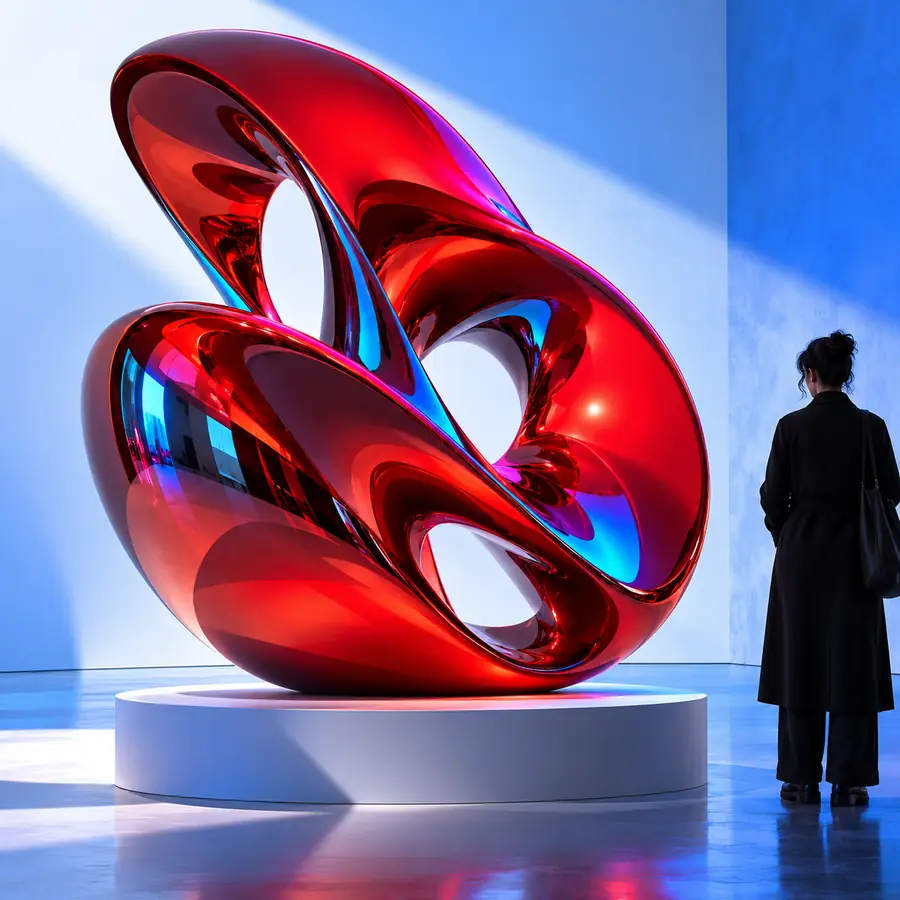
First example image used as a visual reference
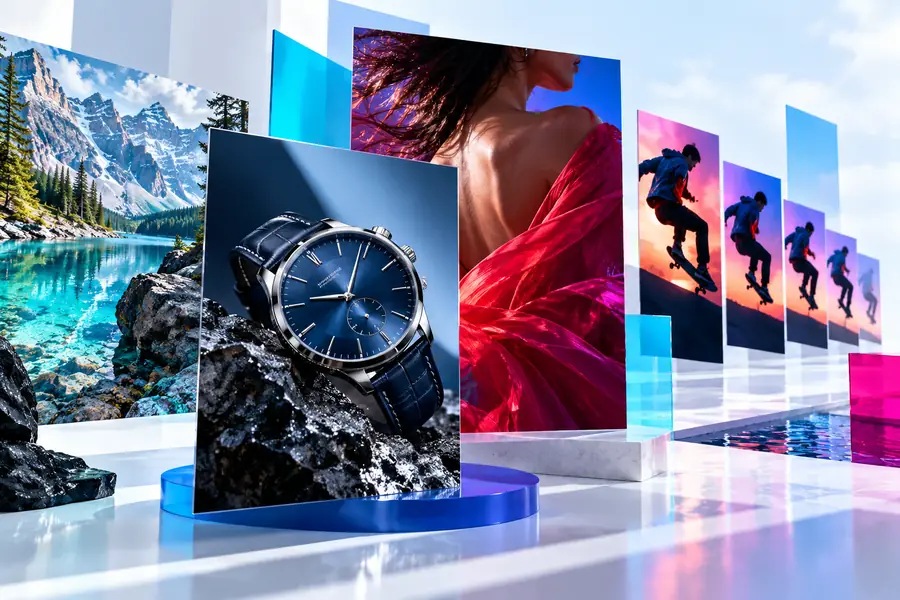
Second example image used as a visual reference
Alternative example

These are separate example images, not a verified before-and-after edit of the same source. Use the contrast to ask which composition better serves your goal, not to infer a specific tool's results.

Take the next step

Start with the image's purpose

Choose the change your audience needs to notice, then assess any result against the original. The best image editor examples are useful because their improvements can be explained, checked, and adapted to a real placement.

  • Keep your source image for comparison
  • Check important details before publishing
  • Review the result where it will appear

Scenario FAQ

Look for a result that solves a visible problem for a specific use, such as making a product easier to identify. Copy the decision behind the edit, not necessarily its color treatment or visual style.

Examples that improve framing, reduce background distractions, and preserve accurate product details are good references. Compare them at the size customers will actually see, since small previews can disguise mistakes.

Not usually. Portraits call for careful checks of skin texture and recognizable features, while a social graphic also needs readable text and a clear hierarchy at mobile sizes.

Confirm that both views show the same source and that differences are not just a change in crop or scale. Then inspect whether the edit fixed its stated problem without introducing distorted details or misleading changes.

No. They illustrate editing goals and evaluation criteria; they do not verify a tool's features or guarantee a matching output. Check the tool itself before relying on a specific workflow.

Start creating
Start creating